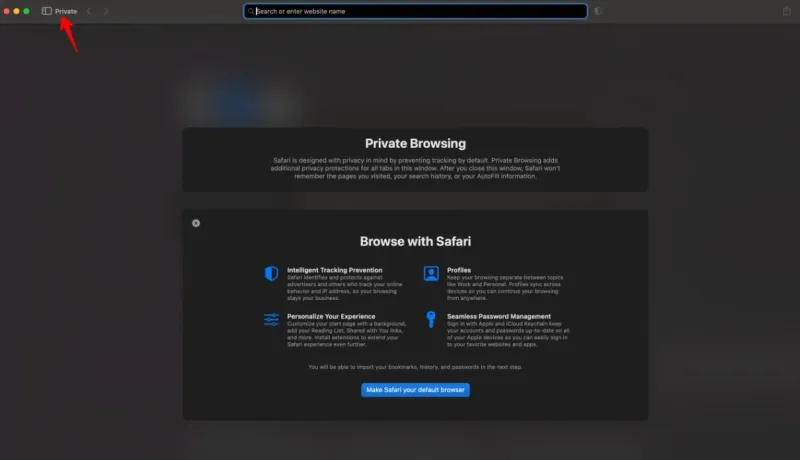
Incognito Mode (Browsers & Consumer Web)
Incognito Mode allows you to browse websites without saving certain browsing data on your device. You can visit different websites without adding them to your regular browsing history. Cookies and site data are deleted once you close all Incognito windows. It also allows you to sign in to a second account without logging out of your primary one.
Simply put, Incognito Mode lets you browse the web without leaving a browsing history on your local device.
A BlueVPS Windows VPS NVMe-bWKVM 8192 can also be useful for managing multiple online accounts and testing websites. By connecting to your VPS through Remote Desktop (RDP), you can install your preferred browser and use Incognito Mode to open separate browsing sessions without affecting your regular browser activity. This is especially useful when working with multiple accounts, as you can stay logged into your primary account in a regular window while accessing another one in Incognito Mode. You can also use private browsing to test websites without interference from existing cookies or saved sessions. All of this can be done in a separate remote Windows environment without affecting your personal computer.
You can find more details about the NVMe-bWKVM 8192 Windows VPS plan via the following link: https://my.bluevps.com/store/bluevps-windows/nvme-bwkvm-8192.
Important Things to Keep in Mind When Using Incognito Mode
- Incognito Mode doesn't hide your real IP address. Websites and network administrators can still identify your connection.
- If you visit a fake website or enter your login details on a fraudulent page, Incognito Mode won't prevent your information from being stolen.
- Downloading suspicious files or opening malicious links can still put your system at risk.
- Files downloaded in Incognito Mode usually remain on your device even after you close the private window.
How to Open Incognito Mode in Different Browsers?
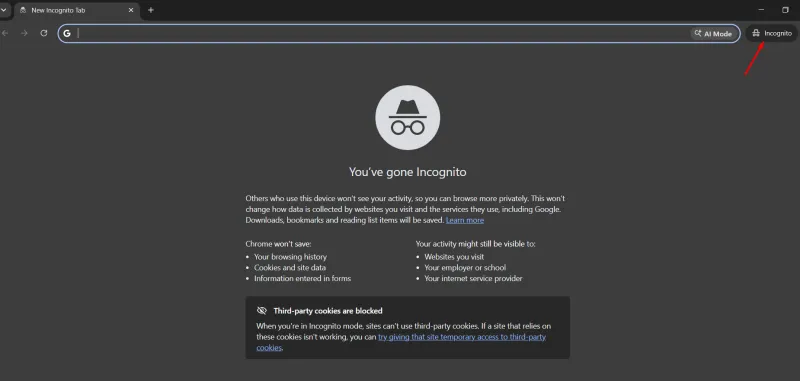
Google Chrome
- Click the three-dot menu in the top-right corner.
- Select New Incognito Window
Alternatively, you can just press Ctrl + Shift + N.
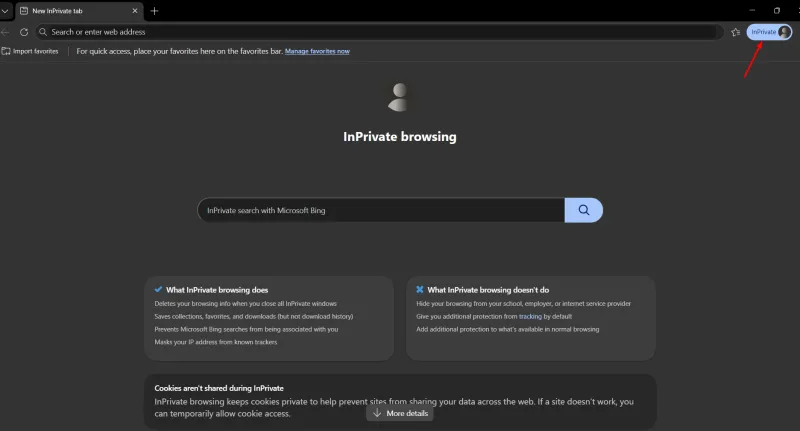
Microsoft Edge
- Click the three-dot menu in the top-right corner.
- Select New InPrivate Window.
Alternatively, press Ctrl + Shift + N.
Mozilla Firefox
- Click the three-line menu in the top-right corner.
- Select New Private Window.
Alternatively, press Ctrl + Shift + P.

Safari
- Open the File menu.
- Select New Private Window.
Alternatively, press Command + Shift + N.