How to Install and Use Git on Windows
Git is a tool that helps you keep track of changes to files and manage different versions of a project. With Git installed on your BlueVPS Windows VPS, you can download files from online repositories, update them when changes are available, and manage your projects directly on your remote server.
In our example, we will use an NVMe-bWKVM 4096 server with a Windows operating system. To view the available configuration options and order the server, please use the following link: https://my.bluevps.com/store/bluevps-windows/nvme-bwkvm-4096.
Method 1: Install Git from the Official Website
You can download Git from the official website via the following link: https://git-scm.com/install/windows. Make sure to download the latest version of Git for Windows.
Once the download finishes, open the installer to begin the installation process. Accept the licence agreement, choose the installation location, and keep the recommended settings. When prompted, select the option to use Git from the command line. Click Install and wait for the installation to finish, then click Finish.
To verify that Git was installed correctly, open PowerShell and run the following command: git --version. If everything is working, the terminal will display the installed version of Git.
Method 2: Install Git Using PowerShell
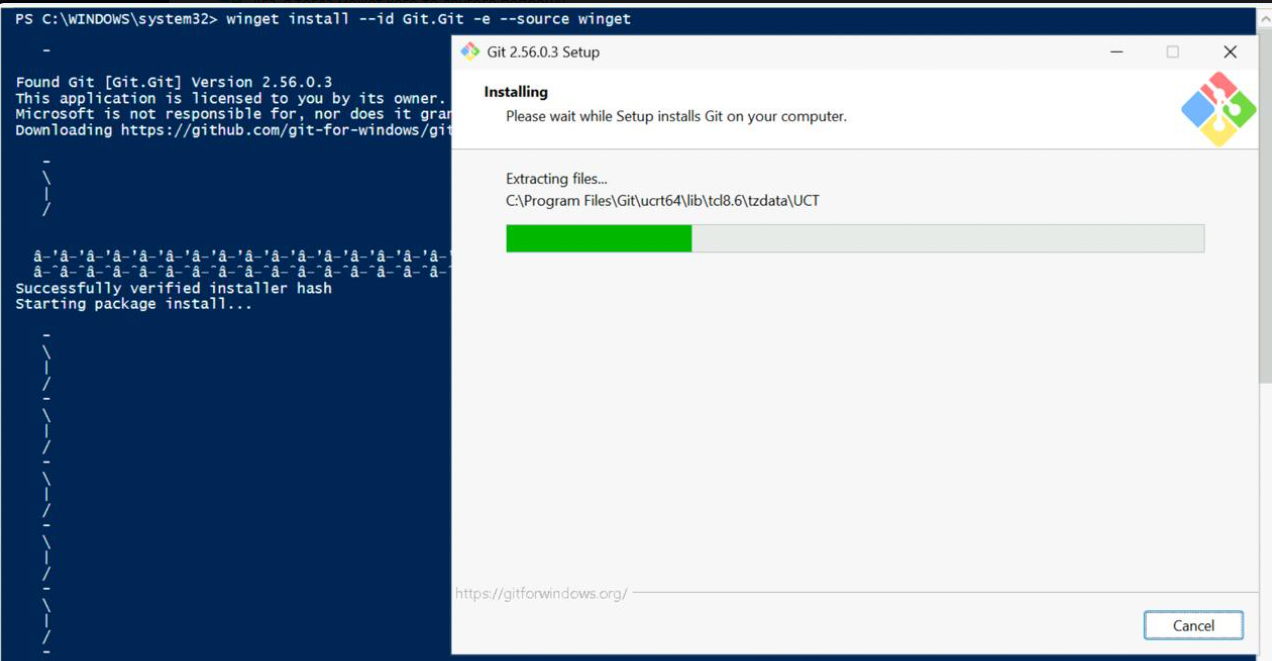
You can also install Git directly from PowerShell. This option uses Windows Package Manager (winget), which is available on supported versions of Windows.
- Connect to your Windows VPS via RDP and open PowerShell as administrator.
- Run the following command: winget install --id Git.Git -e
- When the installation is finished, close and reopen PowerShell.
- You can also check if Git is installed correctly by using the following command: git --version
Useful Git Commands
Once Git is installed, you can start using it. Below you can find some useful commands that help you to work with Git.
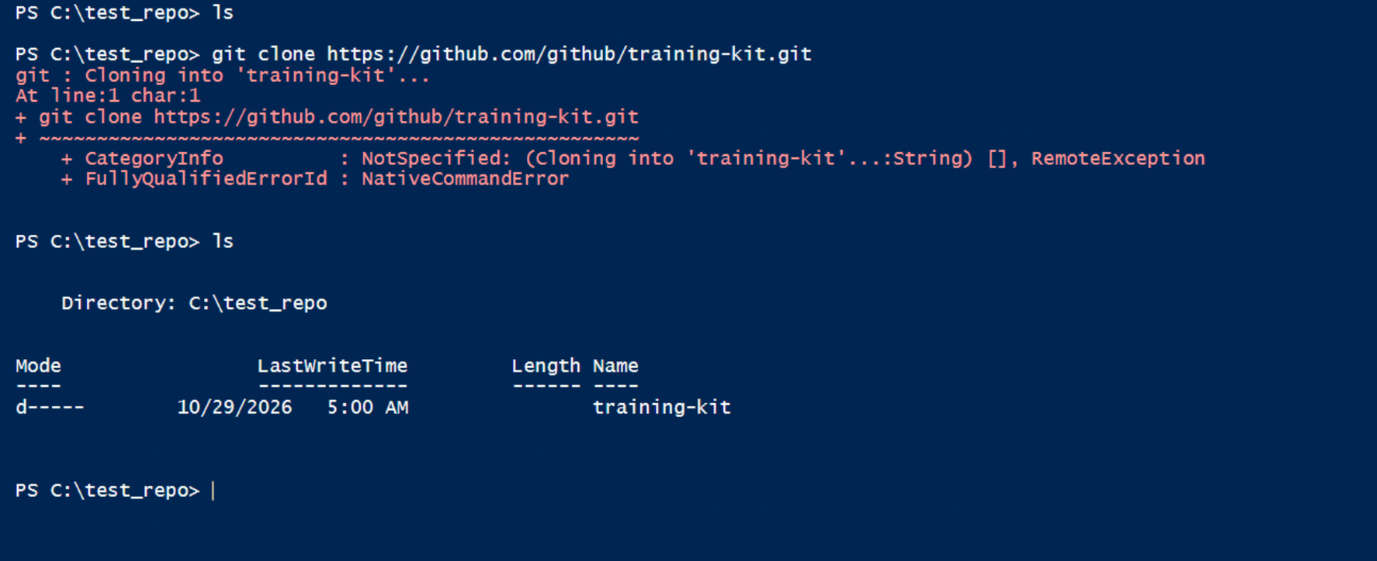
git clone <repository-url>
Downloads a project from an online repository to your VPS.
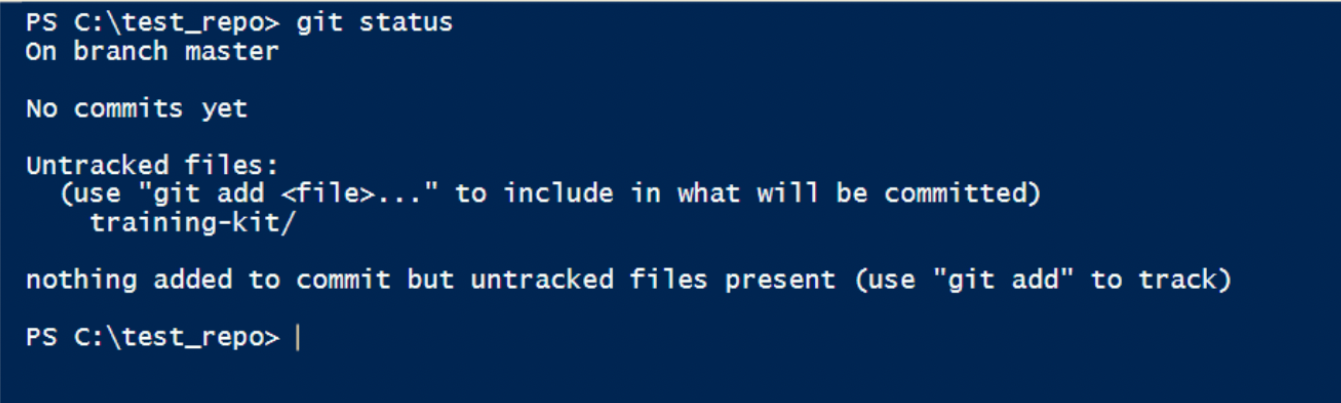
git status
Shows whether any files have been changed.
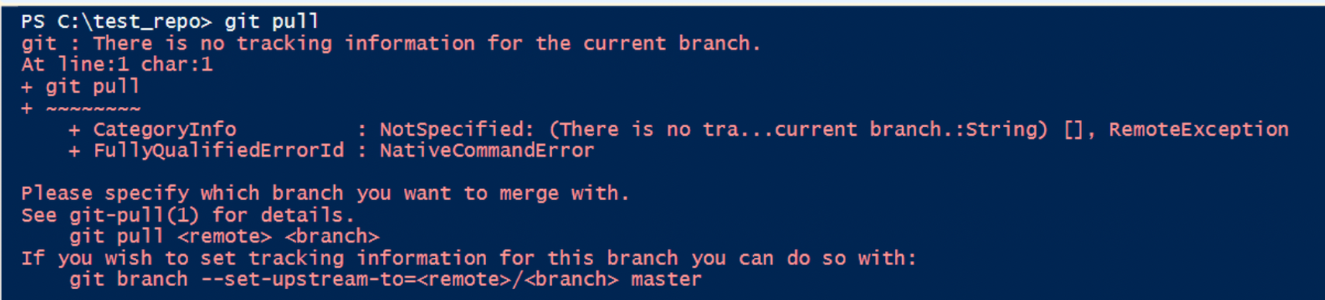
git pull
Downloads the latest changes and updates your local project.
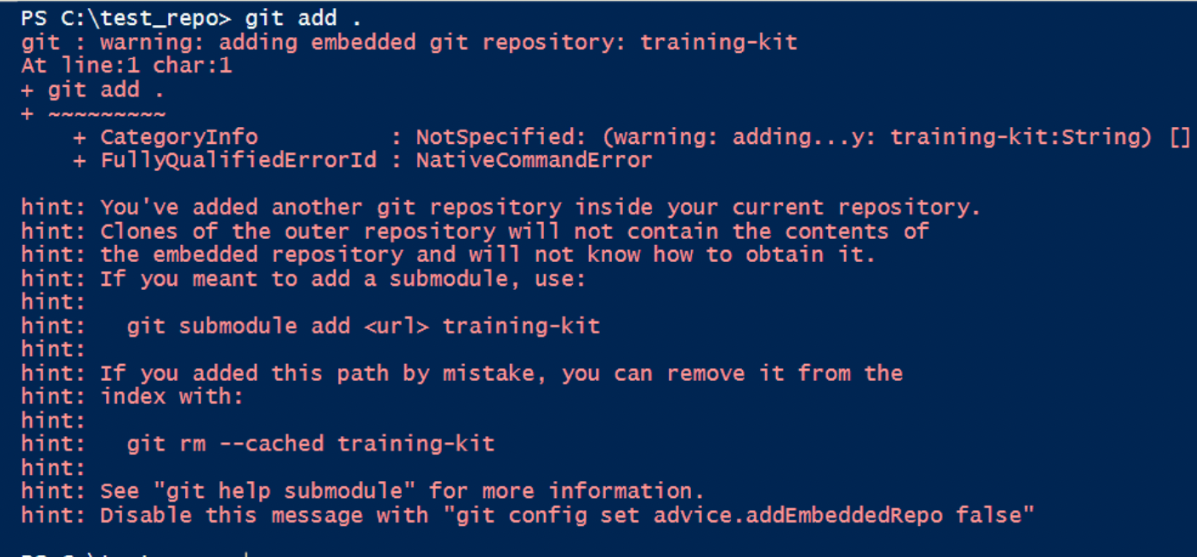
git add .
Prepares all changes in the current directory to be saved in a commit.
git commit -m "Describe your changes"
Saves the prepared changes as a commit with a short description.

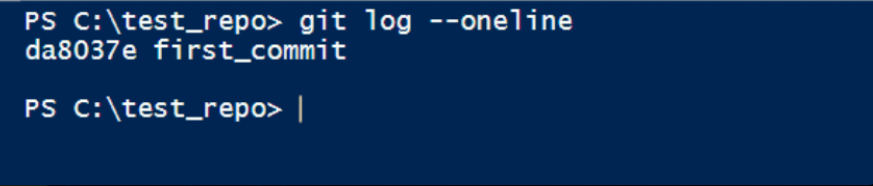
git log --oneline
Displays a brief history of previous commits.
git fetch
Сheck for new commits without applying them to your current branch.
